CapData Workflow
The core functionality of pvcaptest is provided by the CapData class, which is a wrapper around two pandas DataFrames, data and data_filtered. The data DataFrame holds the unfiltered data and the data_filtered DataFrame is a copy of the data that the CapData filtering methods modify. reset_filter() can be used to reset the data_filtered DataFrame to the unfiltered data. The fit_regression() method is used to fit the regression equation stored in regression_formula to the filtered data.
Conducting a capacity tests with pvcaptest involves the following steps:
Load data from the plant DAS / SCADA system (
load_data()) or from a PVsyst file (load_pvsyst()), returning an instance ofCapData.Review / modify the
column_groupsattribute as needed.Use the
set_regression_cols()method to set the columns or group of columns to be used in the regression.When there are multiple sensors for a given measurement, use
agg_sensors()to aggregate the data from the sensors.Use the filtering methods to filter the data.
Calculate reporting conditions.
Use
fit_regression()method to fit the regression equation to the filtered data.Repeat the above steps for the modelled data, except calculating reporting conditions, which should be calculated once from either the measured or simulated data.
Compare the regression results for the measured and modelled data.
Loading Measured Data
Generally, the first step to conducting a capacity test is to load data from the plant DAS / SCADA system. This is done using load_data(), which will return an instance of the CapData class. This function makes a number of assumptions about the data, which are described below. The data to be loaded should be a single file or a collection of files in single directory.
The data is in a comma-separated value (CSV) file(s) (other file tye can be used).
The data is in a “wide” format, with each column representing a different measurement and each row a different time.
The first column of the data contains date time information that can be parsed by pandas.
If loading separate files, the files are all csv files.
If you are loading separate files, the row and column indexes do NOT need to match.
Note
Loading data from S3 buckets is supported by passing an s3:// URI as the path argument to load_data() or DataLoader. The s3fs package must be installed for S3 support. For example: load_data(path="s3://my-bucket/data/").
load_data() does a few things in addition to loading the data that are required for functionality of many of the CapData methods like agg_sensors(), loc and floc, and the plotting methods and to clean up minor issues in the raw data:
Note
loc and floc can be used to access data, see Accessing Filtered and Unfiltered Data.
Sorts the data by the datetime index.
Drops any rows where all values in the row are duplicates of the any other row.
Reindexes the data so there are no missing time intervals.
Attempts to group the columns by measurement type based on the column names and store the resulting groupings in the
column_groupsattribute.If you provide information about the project site (latitude, longitude, elevation, timezone, racking type, racking orientation) it will add modeled clear sky POA and GHI irradiance to the
dataDataFrame.
Except for the clear sky modelling, the above describes the default behavior of load_data(), which can be adjusted as needed.
If you are loading data from multiple files and the column headings to match across the files, then load_data() will create attempt to join the data by taking the union of the row and column indexes for all files.
Internally, load_data() uses an instance of the DataLoader class, which is available in the data_loader attribute of the returned CapData instance.
Note
Loading data from filetypes other than CSV is possible by passing a custom function to the file_reader argument of load_data(). Also, the extension needs to be passed as a kwarg, e.g. extension='xlsx'.
Note
If it is necessary to modify the data DataFrame to add columns or convert units, it best to do that immediately after loading the data. Followed by calling reset_filters(), which will overwrite the data_filtered DataFrame with the modified data DataFrame.
Column grouping
As mentioned above, much of the functionality of pvcaptest relies on the groupings of the columns of data by measurement type that is stored in column_groups, which is an instance of the ColumnGroups class, but can also be set to a standard python dictionary. column_groups maps a label for each group to a list of the column headings that are in each group.
For example, the first two groups from the Complete Capacity Test example are shown below:
CapData.column_groups = {
    'irr_poa_pyran': [
        'met1_poa_pyranometer',
        'met2_poa_pyranometer'
    ],
    'irr_poa_ref_cell': [
        'met1_poa_refcell',
        'met2_poa_refcell'
    ],
}
The ColumnGroups class provides some convenient features: nice display of the groupings for review and groups as attributes. Having group id as attributes allows groups of columns to be easily accessed using tab completion in Jupyter notebook.
In addition, when data is loaded with load_data(), each column group is also accessible as an attribute directly on the CapData instance. For example, if there is a group with the key poa, it can be accessed as cd.poa, which returns the corresponding columns of data as a DataFrame. This enables tab-completion in Jupyter notebooks for quick exploration of the data. The same behaviour can be enabled on a manually constructed CapData instance by calling create_column_group_attributes().
To rename columns consistently across data, data_filtered, and
column_groups, use rename_cols().
Due to the very wide range of conventions for naming in DAS / SCADA systems, the default approach to grouping columns often fails to return a satisfactory grouping of the columns. This can be addressed by providing an explicit mapping of column group ids to column names in an external file. To do this the path to the file should be passed to group_columns. Excel, JSON, and YAML files are all options. JSON and Yaml must parse to a python dictionary with keys that are string ids of the groups and values that are lists of column names.
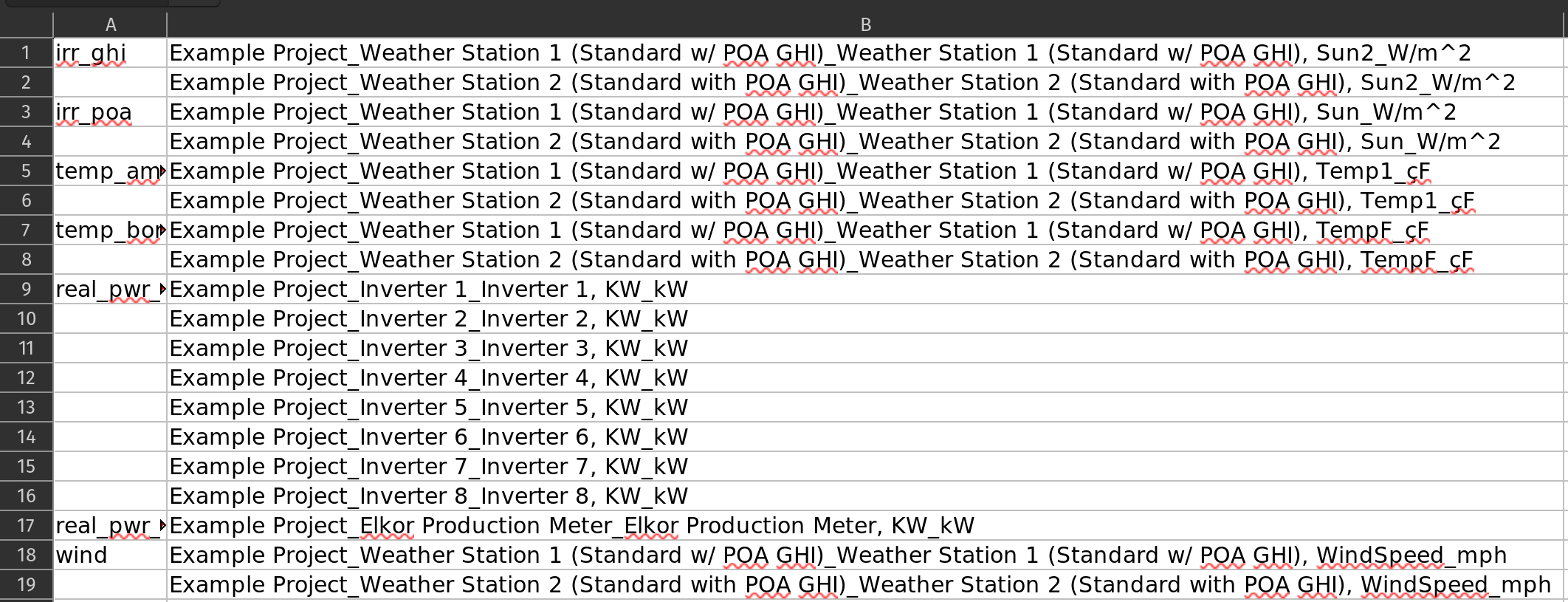
When using an excel file the first column should contain the group ids and the second column should contain all the column headings. The group names do not need to repeated. There should be no header row in the excel file. The most convenient way to create an Excel file specifying the groupings is to run load_data() twice:
Run
load_data()withcolumn_groups_templateset toTrue. This will create an Excel file with the column headings in the second column and save it to the same directory as the data files.Re-order the column headings as necessary and add group ids to the first column.
Run
load_data()again withcolumn_groups_templateset toFalseandgroup_columnsset to the path to the Excel.
Screenshot of the excel file loaded in the Concise Example Capacity Test showing the format for defining a column grouping in an Excel file:
Note
The column names in the column groups template excel file are sorted alphabetically after reversing the names, so names with the same ending are grouped together. This is often a good starting point for grouping the columns, but it is not always correct, so review carefully!
Dashboard
The plot() method of CapData objects will create a Panel dashboard that can be used to explore timeseries plots of the data.
The dashboard contains three tabs: Groups, Layout, and Overlay.
Groups Tab
The first tab, Groups, presents a column of plots with a separate plot overlaying the measurements for each group of the column_groups attribute. The groups plotted are defined by the default_groups argument. This is the default tab when the dashboard is first opened.
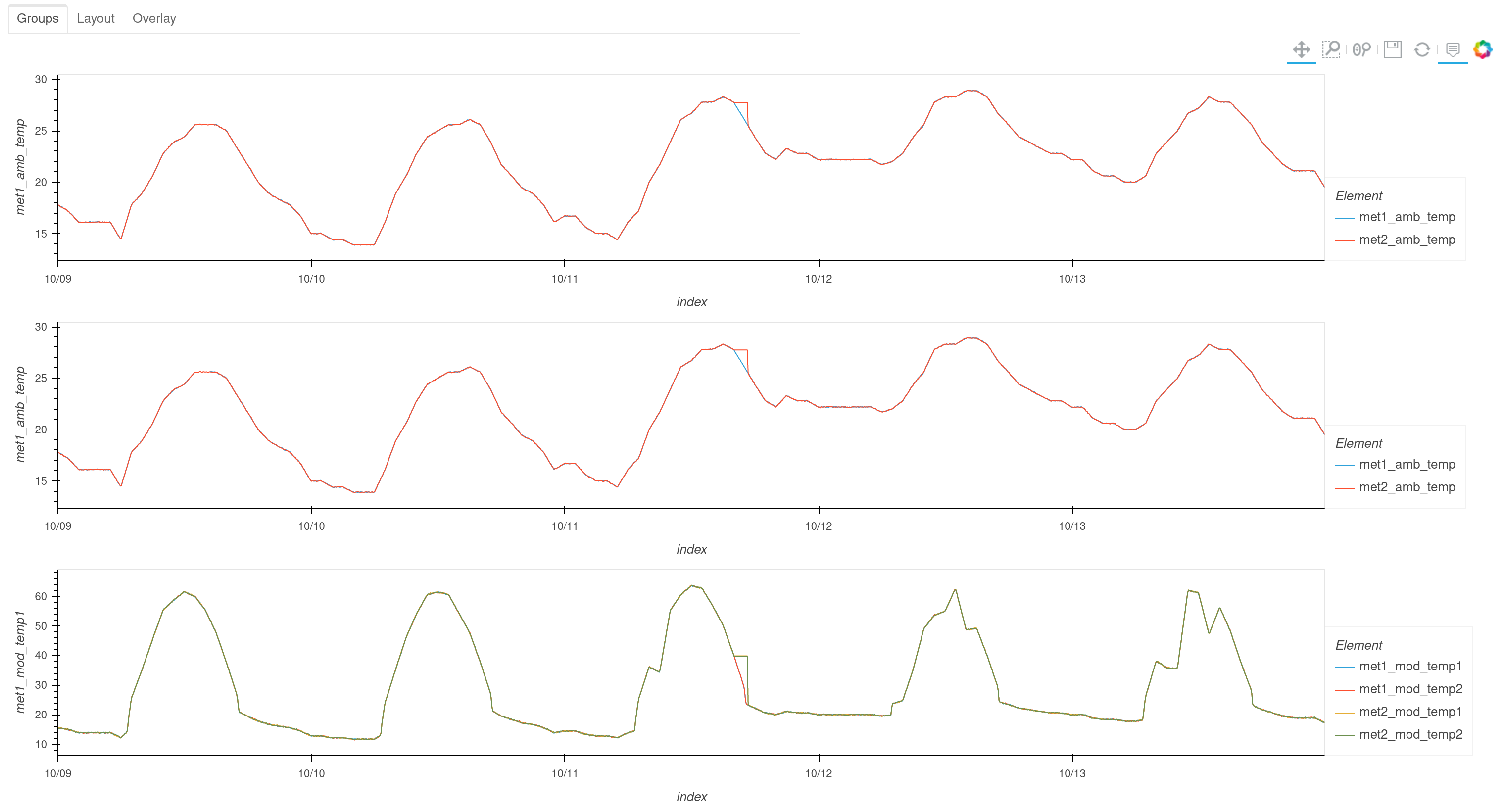
The default_groups argument can be used to specify which groups to plot by passing a list of regular expressions which are used to search the keys of the column_groups attribute. The default list of regular expressions attempts to create the following plots:
Metered power and sum of inverter power, group name is “inv_sum_mtr_pwr”
Inverter power output - group id must contain “real”, “pwr”, “inv”
Metered power output - group id must contain “real”, “pwr”, “mtr”
GHI irradiance
Modeled clear sky POA irradiance
Modeled clear sky GHI irradiance
Ambient temperature and BOM temperature - group name is “temp_amb_bom”
The groups names inv_sum_mtr_pwr and temp_amb_bom are not keys from column_groups, but are created from the dictionary keys of the combine argument. These labels are for combinations of groups from the column_groups attribute. The combine argument can be used to create these combined groups by passing a dictionary of group names and regular expressions. The regular expressions are used to identify groups from column_groups and individual tags (columns) of data to combine into new groups. The dictionary keys are strings which will be used as the names of new groups. Values should be either a string or a list of two strings. If a string, the string is used as a regex to identify groups to combine. If a list, the first string is used to identify groups to combine and the second is used to identify individual tags (columns) to combine.
See the parse_combine() and find_default_groups() functions for more details.
The Layout and Overlay tabs provide the same functionality of combining and selecting groups to be plotted on the Groups tab through a GUI without needing to write regular expressions.
Layout Tab
The Layout tab allows creating a column of plots like the Groups tab by selecting groups from the list.
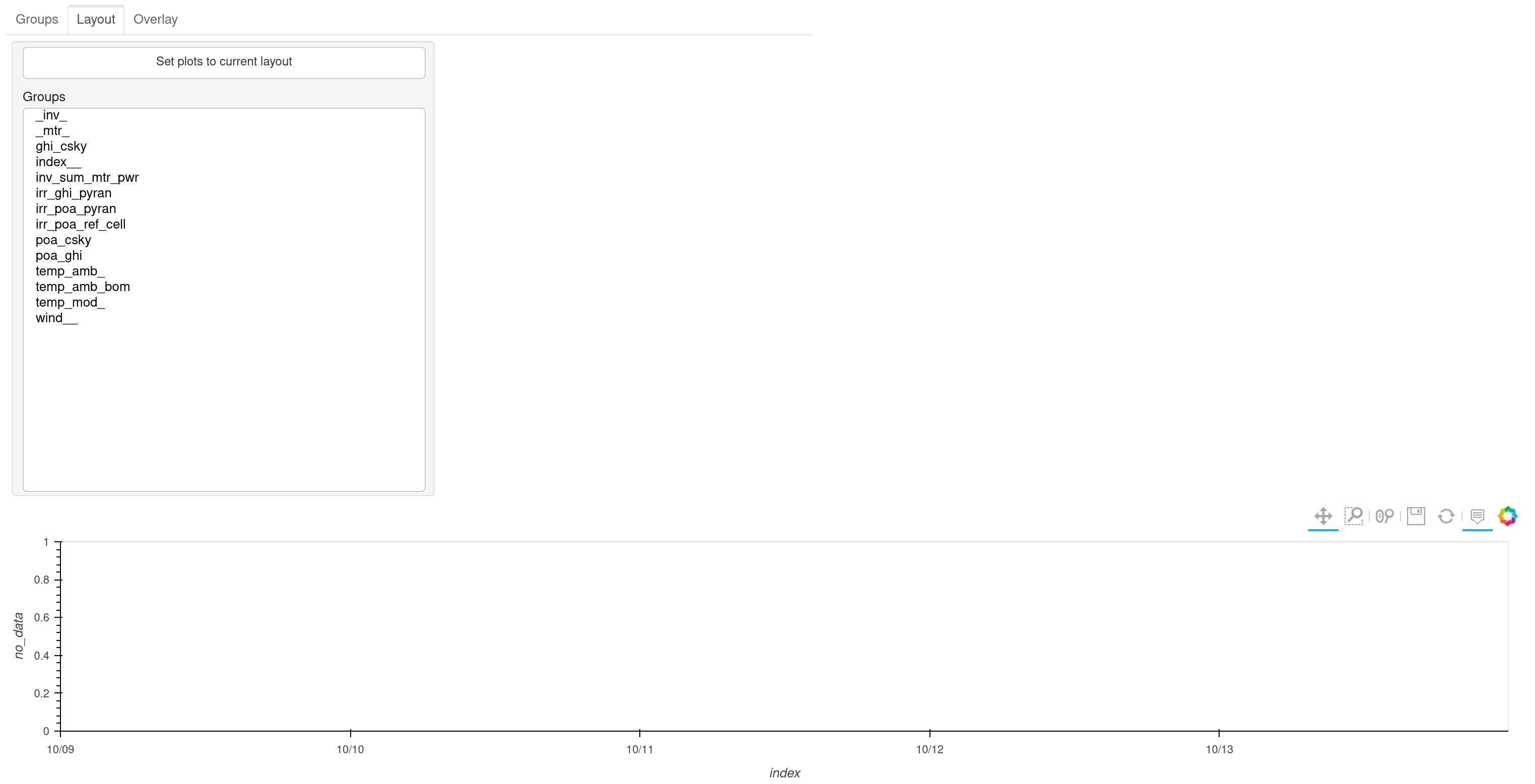
The button labeled “Set plots to current layout” above the list of groups can be used to replace the figure shown on the Groups tab with the current figure on the Layout tab. This will save a plot_defaults_{name}.json file (where name is the name attribute of the CapData instance, e.g. plot_defaults_das.json) in the current working directory. This file is read automatically the next time plot() is called. You will need to rerun the plot method to see the new defaults.
Using a per-instance filename prevents conflicts when multiple CapData objects (e.g. das and sim) are used in the same notebook session — each object reads and writes its own defaults file.
The plot_defaults_path argument can be passed to plot() to override the default path.
Note
The defaults file overrides the default_groups argument. To revert to auto-detected defaults, delete the file or pass plot_defaults_path pointing to a non-existent path.
Note
If the data has changed since the defaults file was saved and some stored column names no longer exist, those columns are silently dropped with a UserWarning. If no valid columns remain, the dashboard falls back to auto-detected default groups.
Overlay Tab
The Overlay tab allows picking a group or any combination of individual tags to overlay on a single plot similar to the functionality of the combine argument.
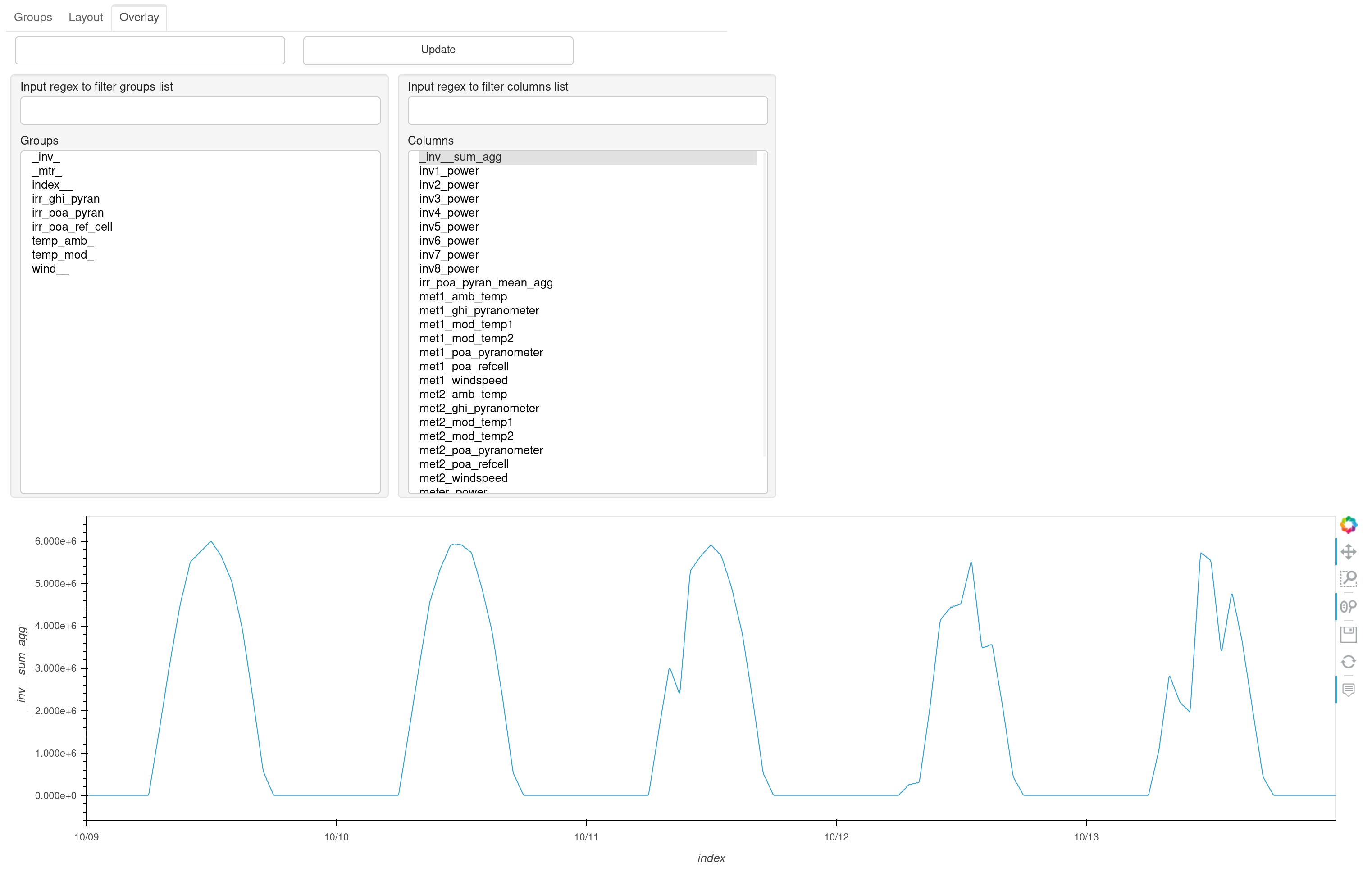
The list of groups and tags can be filtered using regular expressions. The text box at the top left of the tab is used to provide a label for the current overlay, which can be added to the list on the Layout tab by clicking the Update button.
Residual Plots
residual_plot() creates overlay scatter plots of
regression residuals versus each regression parameter for the measured and
simulated CapData instances bound to a
CapTest. This makes it easy to visually compare how
the two models differ across the range of each predictor variable. See
CapTest Workflow for the full workflow.
Identifying Regression Data
To perform the regression pvcaptest uses statsmodels, which in turn relies on patsy to simplify specifying regression equations.
By default the ASTM E2848 regression equation is defined in the regression_formula attribute:
'power ~ poa + I(poa * poa) + I(poa * t_amb) + I(poa * w_vel) - 1'
Patsy and Statsmodels expect to find columns with the power, poa, t_amb, and w_vel headings in the DataFrame passed to fit the regression. Rather than requiring those headings to be in the data DataFrame, pvcaptest requires the user to specify which columns or group of columns are to be used in the regression in regression_cols. The set_regression_cols() method can used to identify column headings or column group ids (column_groups keys). Or regression_cols can be set to a dictionary mapping the regression terms defined in the regression_formula to the column headings or column_groups id.
The ability to map a regression term to a group of columns is useful when there are multiple sensors for a given measurement, as described in the next section.
Aggregating Sensors
agg_sensors() can be used to aggregate data from multiple sensors into a single column. This is useful when there are multiple sensors for a given measurement. Any combination of groups of columns and aggregation functions can be passed. By default the groups of columns assigned to the power, poa, t_amb, and w_vel keys in the regression_cols attribute are aggregated by summing the power and averaging the POA irradiance, ambient temperature, and wind speed columns.
agg_sensors() adds the resulting aggregated columns to the data and data_filtered dataframes. If regression_cols included a group of columns that was aggregated, regression_cols is updated to map the regression term to the aggregated column. After aggregation, all aggregated columns are also stored under the "agg" key in column_groups and are accessible as CapData attributes prefixed with aggs_ (e.g., cd.aggs_irr_poa_mean_agg).
agg_sensors() also supports nested subgroup aggregation. If a value in agg_map is itself a dictionary, its keys are treated as subgroups to aggregate first, and the results are then aggregated together. This is useful when sensors are grouped by met station before being combined into a single representative value. For example:
cd.agg_sensors(
    agg_map={
        'irr_poa': {
            'irr_poa_met1': 'mean',
            'irr_poa_met2': 'mean',
        },
    }
)
This first averages the sensors in irr_poa_met1 and irr_poa_met2 separately, then averages those two results to produce irr_poa_mean_agg.
For example, if the regression_cols attribute was set to the following:
CapData.regression_cols = {
    'power': 'real_pwr_mtr',
    'poa': 'irr_poa',
    't_amb': 'temp_amb',
    'w_vel': 'wind',
}
Where irr_poa, temp_amb, and wind are the ids of groups of columns in column_groups.
When agg_sensors is called with the default arguments, regression_cols is updated to the following:
CapData.regression_cols = {
    'power': 'real_pwr_mtr',
    'poa': 'irr_poa_mean_agg',
    't_amb': 'temp_amb_mean_agg',
    'w_vel': 'wind_amb_mean_agg',
}
where irr_poa_mean_agg, temp_amb_mean_agg, and wind_amb_mean_agg are the ids of the aggregated columns in data and data_filtered and these columns will be used when fitting the regression.
Accessing Filtered and Unfiltered Data
The methods loc and floc can be used to access columns of data from the data and data_filtered DataFrames, respectively.
Any column heading of the data DataFrame, group id from column_groups, or regression term from regression_cols can be passed to loc or floc. Or, a list with any combination of these identifiers can be passed.
Filtering
Warning
filter_clearsky no longer accepts window_length as a direct keyword argument
as of v0.14.0. Pass window_length and any other pvlib detect_clearsky
parameters via **kwargs:
cd.filter_clearsky(window_length=10)
The CapData class provides a variety of methods for filtering as described in ASTM E2848. These methods are all begin with “filter_” and are well described in the docstrings of each method.
Running filters removes data from data_filtered. Each subsequent filtering method called will be applied to data_filtered, so the overall filtering is cumulative.
reset_filter() method can be used to reset the data_filtered DataFrame to the unfiltered data.
The get_summary() method will return a summary dataframe showing the number of rows in the data_filtered DataFrame before and after each filter was applied, the name of the each filter, and the arguments passed when calling each filter.
Reporting conditions
rep_cond() can be used to calculate the reporting conditions. rep_cond is formula-agnostic: its right-hand-side variables are derived from regression_formula via parse_regression_formula(), so it supports any regression equation (not just the default ASTM E2848 formula). Results are stored in the rc attribute.
The func argument is a dict mapping each right-hand-side variable name to an aggregation function (a pandas agg name or a callable). Omitting func falls back to {var: 'mean' for var in rhs}. For percentile aggregations use perc_wrap(), e.g. func={'poa': perc_wrap(60), 't_amb': 'mean', 'w_vel': 'mean'}.
When the test is driven through a CapTest, each preset in TEST_SETUPS supplies its own default rep_conditions dict and rep_cond() forwards it automatically. See CapTest Workflow.
The “Reporting Conditions and Predicted Capacities” example demonstrates the reporting condition functionality in more detail.
Fitting Regressions
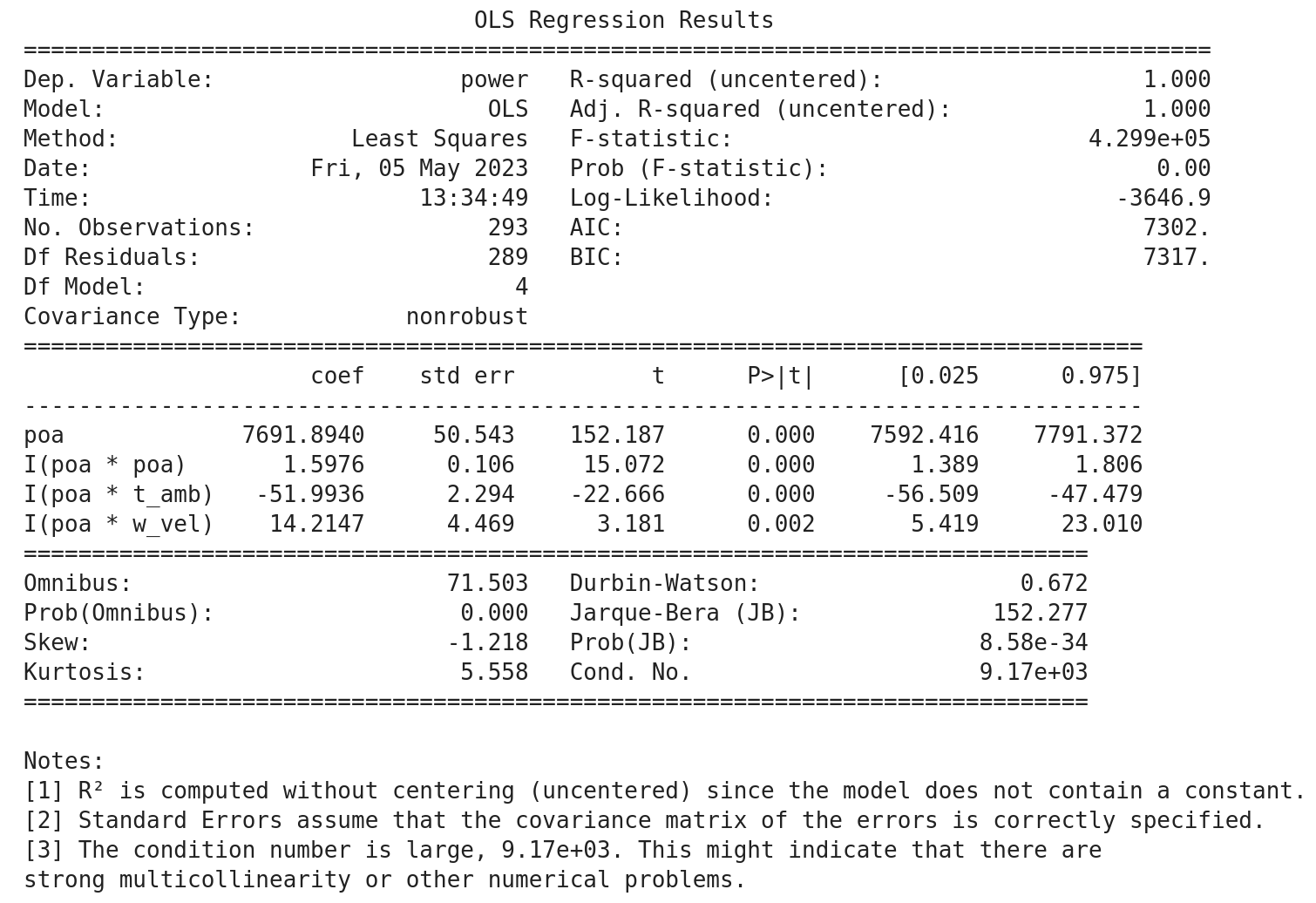
fit_regression() is used to fit the regression equation stored in regression_formula to the filtered data. The statsmodels regression results are stored in the regression_results attribute.
By default a summary showing the results of the regression is printed, similar to below:
Results
After loading, filtering and regressing measured and simulated data in two separate instances of CapData, the two instances are bound together in a CapTest and compared using captest_results_check_pvalues(). This will provide a summary of the predicted power using the regression coefficients of each CapData instance and the reporting conditions. See CapTest Workflow for construction and the full workflow.
The results method will check and warn for potential issues:
The regression equations in the two
CapDatainstances are different.Both
CapDatainstances have reporting conditions.
See the Example Capacity Test, for example usage of the results function.
The results from that example display as follows:
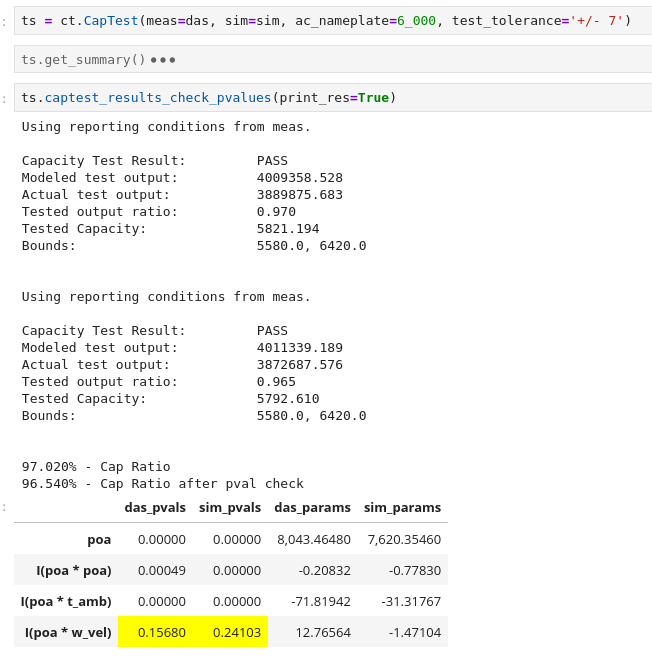
By default the results will be calculated twice. The second calculation will set the regression coefficient for any term where the p-value is greater than 0.05 to zero before calculating the predicted power. These high p-values are highlighted in yellow as shown in the above example for the wind speed regression term of the simulated data.